The same web browser that's on your EveryStep computer is now available on your EveryStep iPhone!
Benefits of using Edge on both of your EveryStep devices are:
- Sync Favorites
- Sync Open Tabs
- Sync Passwords
- Sync History
To install Edge:
- Launch the Comp Portal app (it's in first folder in the top left labeled Microsoft Apps).
- If prompted sign in with your full EveryStep email address and main password.
- If prompted "Approve" sign in
- Tap Apps (bottom left corner)
- Tap View all apps
- Tap
 Edge
Edge - Tap Install
- Allow a few minutes for the app to download and install.
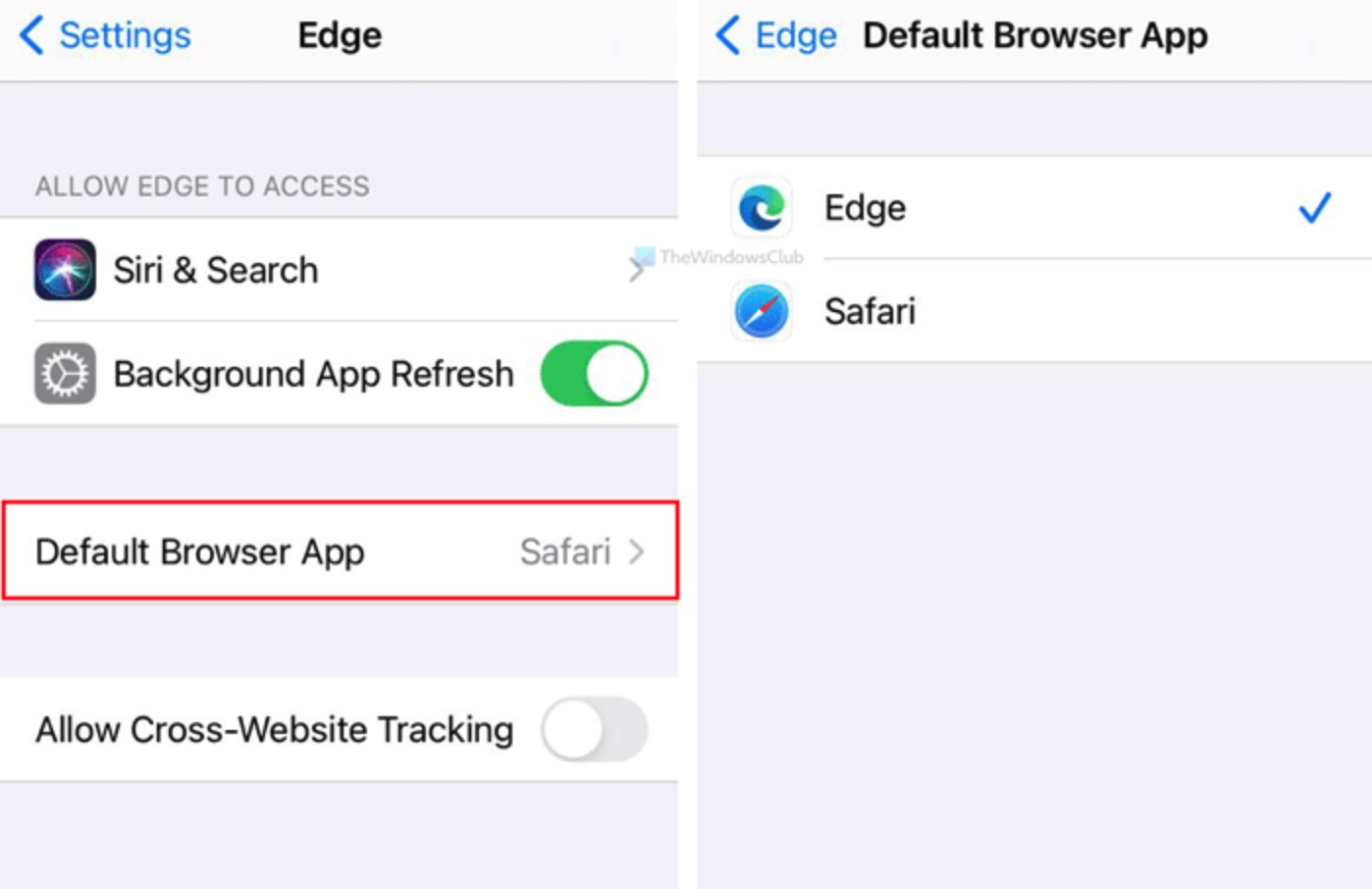
To set Edge as the default web browser on your iPhone:
- Open the Settings app on your iPhone.
- Scroll down to the bottom and select Edge from the list.
- Tap Default Browser App.
- Tap Edge.