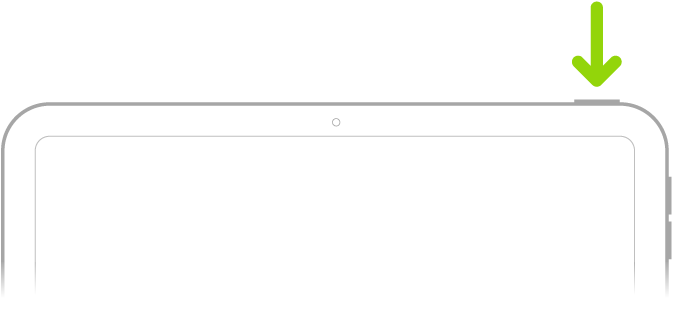
- Turn on iPad (hold down the Top button in top right corner for ~5 seconds)
- Click the Home button or Swipe up
- Tap English
- Tap United States
- Tap Set Up Manually
- Connect to Wi-Fi
- If you’re in the office tap EveryStep Public – password is beourguest (no caps)
- If you are at home, use your own Wi-Fi information
- Tap Join in the top right corner
- Tap Next in the top right corner
- Tap Next to "Remote Management" (in the top right corner)
- Tap Continue to setup Touch ID and follow the on-screen instructions
- Create a SIX DIGIT passcode - you can use the same passcode as your work iPhone
- Tap Enable Location Services
- Wait ~1 min, tap Dismiss to "Edit Home Screen"
- Tap on Comp Portal
- Tap Sign in
- Sign in with your EveryStep email address and password
- Tap OK to "Get notified so you don't lose access"
- Tap Allow to "Comp portal would like to send you notifications"
- Tap Begin to "Set up EveryStep access"
- Tap Done to "You're all set!"
- Allow ~10 min for all settings and apps to install.