If you put a document in the cloud with OneDrive you can acces that document from other devices, such as your laptop and your organization owned iPhone. It also transfers your documents if if/when you get a new device.
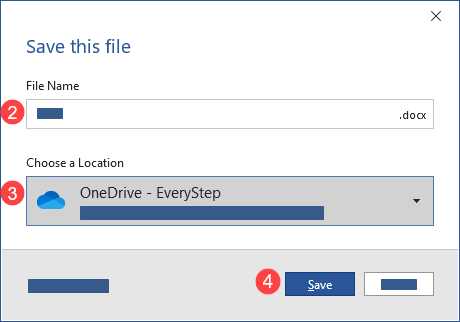
Saving a new document to OneDrive:
- Select the Save icon in the top left

- Name your file
- Select
 OneDrive - EveryStep for the location.
 - Select Save.
Opening OneDrive:
There are multiple ways to access OneDrive.
If you're on Citrix: Open OneDrive in your browser
-
Sign in to OneDrive using the Office 365 icon on your Desktop.
-
Select
OneDrive.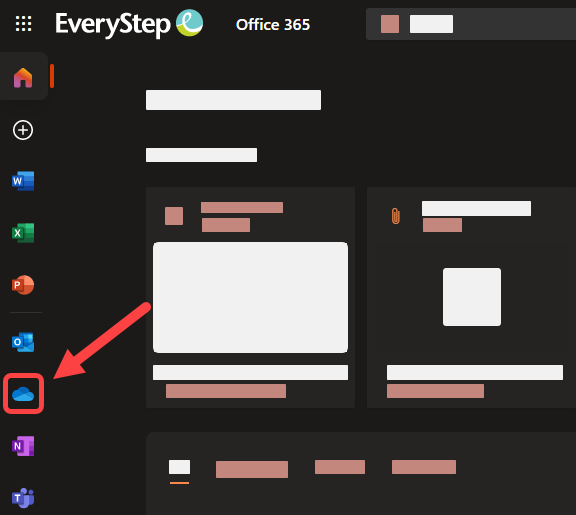
- Select Upload to upload a file or folder. Or create a New file.

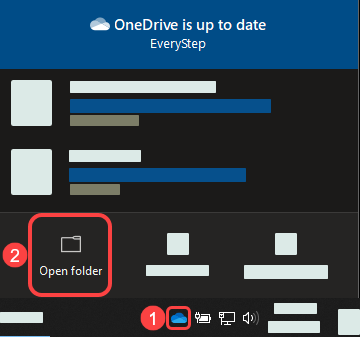
If you're on a laptop option 1:
-
Select
OneDrive in your system tray. (Bottom right corner of your laptop). -
Select Open folder.
-
Create folders, copy and paste, or drag and drop items to your OneDrive.
If you're on a laptop option 2:
- Select
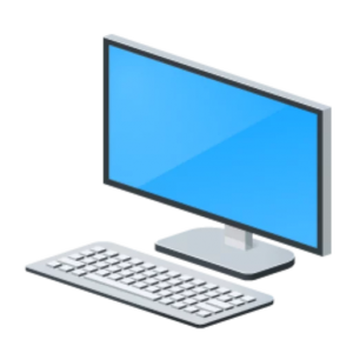 This PC.
 - OneDrive - EveryStep.
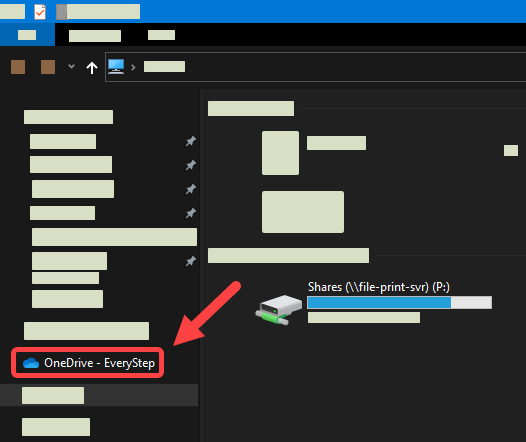
- Create folders, copy and paste, or drag and drop items to your OneDrive.