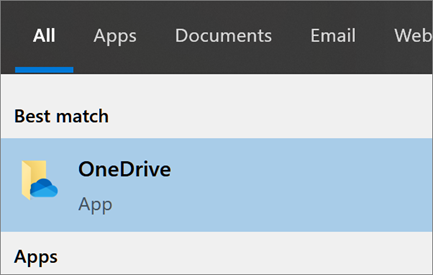
- Select the Start button, search for “OneDrive”, and then open it.
-
When OneDrive Setup starts, enter your EveryStep email address and select Sign in. (If you are not presented with the screen your OneDrive has already been setup. See how to Open and upload files to OneDrive.)

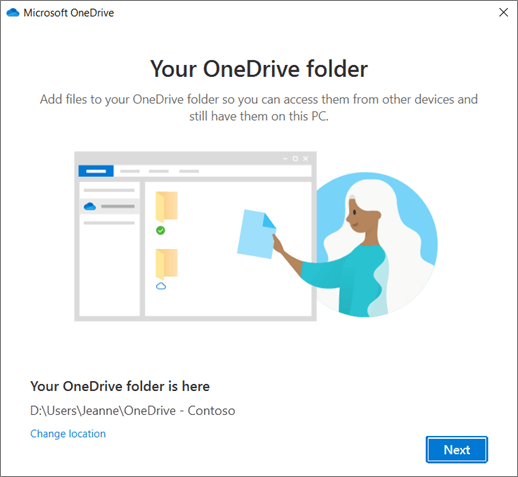
- On the "This is your OneDrive folder screen" select Next to accept the default folder location for your OneDrive files.
-
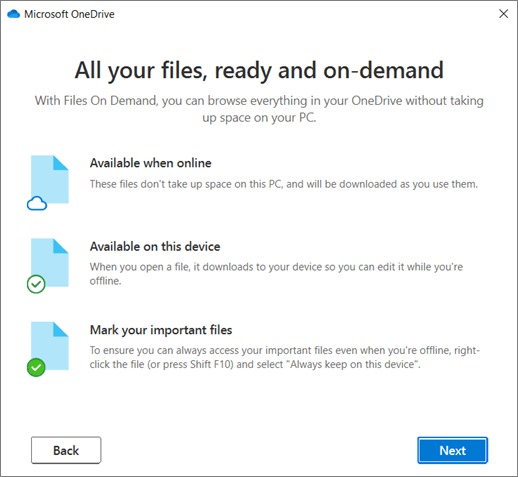
On the "All your files, ready and on-demand" select Next.
To quickly open OneDrive clickOneDrive in your system tray. (Bottom right corner of your laptop).