When first using Teams you must allow Camera & Microphone permission. In case you accidentally denied permission or need to change permission follow the instructions below. Depending on the method being use to join a Teams meeting instructions vary.
Teams meeting via Microsoft Edge  or Google Chrome
-
In your email invite sent to the guest participant, have them “Click here to join the meeting” select Continue on this browser.
If a meeting invite has not been sent visit http://teams.microsoft.com (do not to sign in, move on to step 2)
-
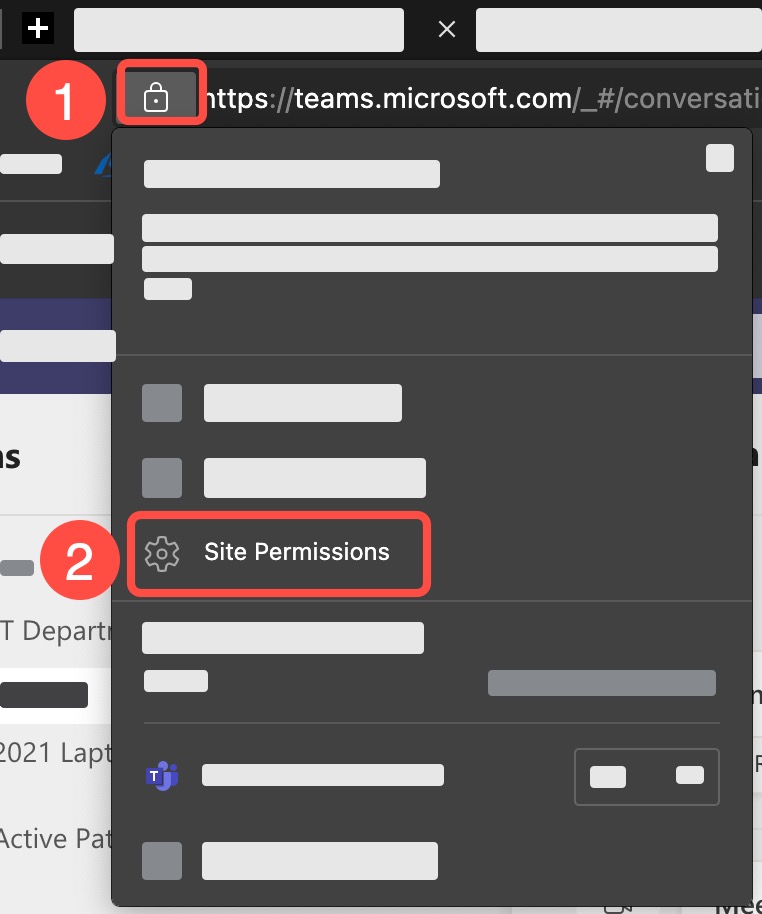
Click the Lock icon next to the website link in the address bar.
-
Click Site Permissions
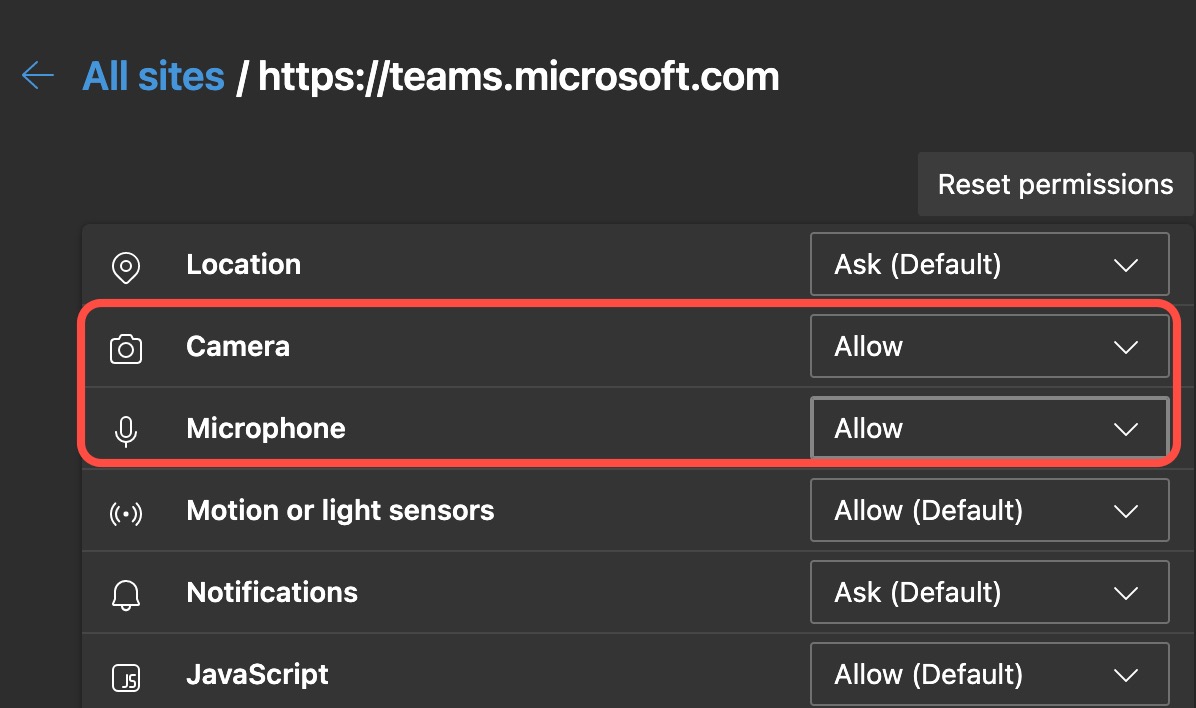
- Allow both Camera and Microphone permission
Teams meeting via Windows 10 installed app
To use your camera with apps on Windows 10, you'll need to turn on some permissions in Camera settings. Then, you'll need to check your app permissions if you want to use your camera with apps. Here's how:
-
Select Start > Settings > Privacy > Camera. In Allow access to the camera on this device, select Change and make sure Camera access for this device is turned on.
-
Then, allow apps access to your camera. In Camera settings, go to Allow apps to access your camera and make sure it's turned on.
-
Once you've allowed camera access to your apps, you can change the settings for the Teams app. In Camera settings, go to Choose which Microsoft apps can access your camera, and turn on Teams apps. For desktop apps, make sure that Allow desktop apps to access your camera is turned on.
Teams meeting via Chromebook installed app
- Launch Settings > Apps > Manage your apps.
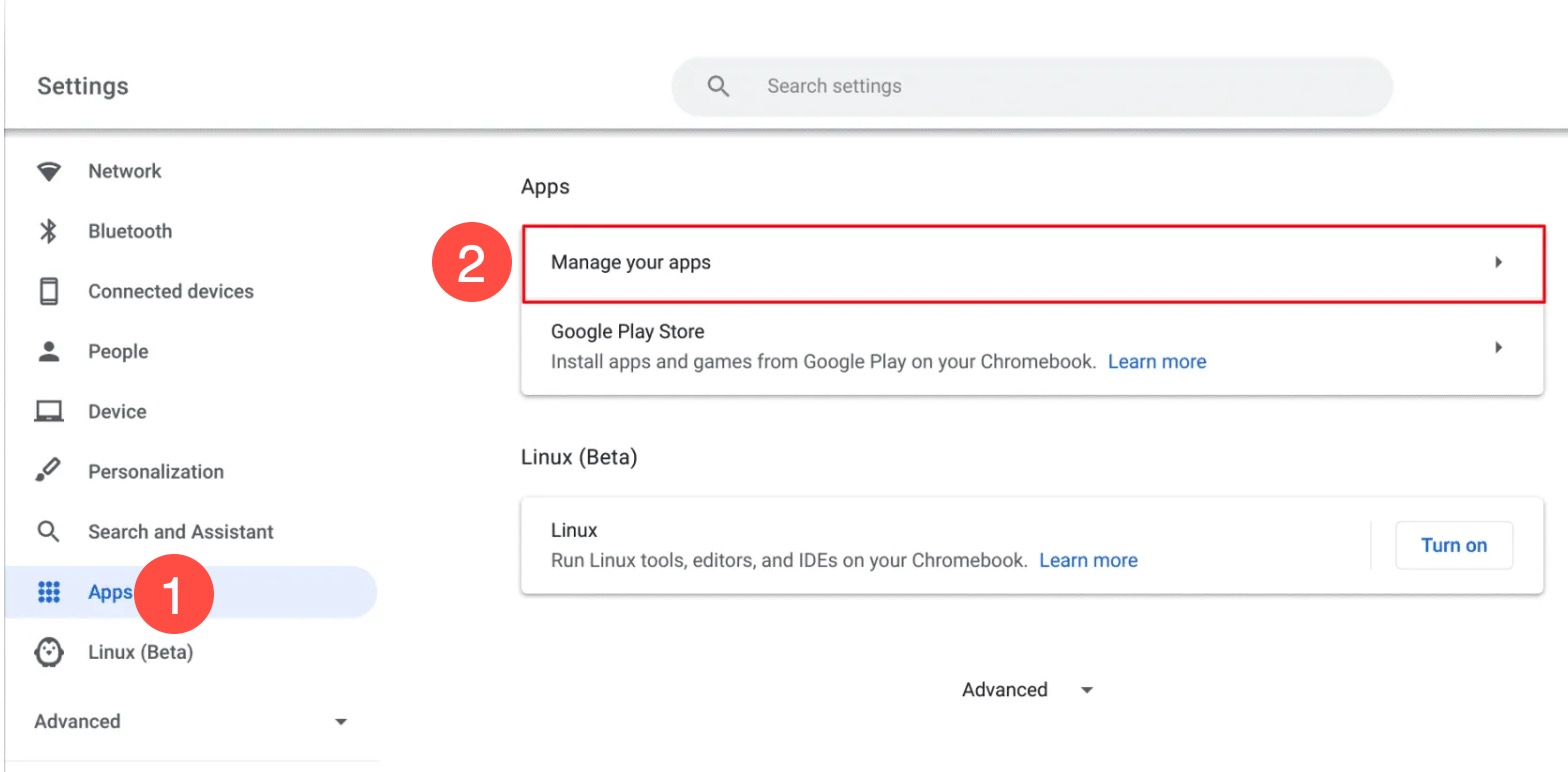
- To manage permissions for Team, click and select Teams from this list.
- Allow both Camera and Microphone permission
Teams meeting via iPhone/iPad installed app
After Teams has been installed and lunched
-
Go to Settings
 > Privacy.
 - Tap Microphone > Allow Teams
- Go back to Privacy
- Tap Camera > Allow Team
Teams meeting via Mac installed app
- Click Apple menu
 (top left corner)
 - Click System Preferences
- Click Security & Privacy, then click Privacy tab.
- Select Microphone > Select the checkbox next to Teams to allow it to access the microphone.
- Repeat the same steps for Camera.