Before a meeting
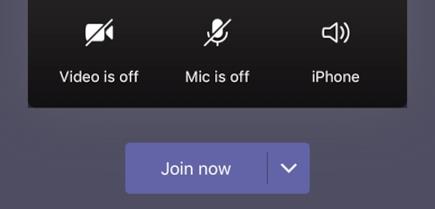
To turn on your video before a meeting, just tap Turn video on  right before you join.
During a meeting
You may want to turn your video on or off over the course of a meeting—if you'd prefer people only see you while you're talking, for example. Go to the meeting controls anytime during the meeting and tap Turn video on .

Blur your background
You can blur your background before or during a meeting if you don't want others to be able to see what's behind you. You'll appear nice and clear while everything behind you is subtly concealed.
Just tap Background blur  in the upper left corner of your screen.

For more details about changing your background, see Change your background for a Teams meeting.
Choose a video layout
You have a few video layout options, depending on the size of the Teams meeting and number of people you'd like to see on your screen.
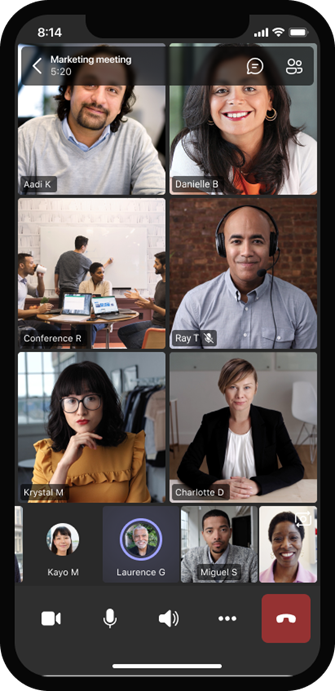
The following examples show the default Gallery view on different devices.
Phone layout example
-
Select More options
 > Meeting views and choose the view you want.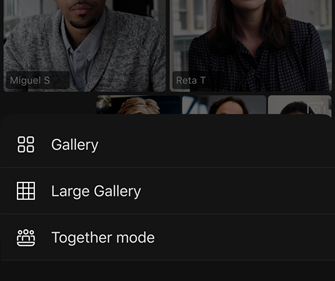
-
Whichever one you choose, pinch in or out to zoom and adjust your view.
Gallery
The default view when you join a meeting. When there are more than seven others in attendance (eight if you're using a tablet), Teams features the people who have their video turned on and those who speak the most. Your video feed is always in the lower-right corner of the screen.
-
If you're using a phone, you can see up to eight featured participant videos and 15 additional people to scroll through at the bottom of the screen. Swipe left or right to view or engage with more participants.
Large gallery
This option's available when at least nine people have their cameras turned on. You can view up to 100 participant videos (though not all at once).
The maximum number of people you can see on your screen at once depends on your device and its software.
Together mode
Lets you feel like you're in the same shared space with everyone in the meeting. Together mode is available when a meeting has at least five people in it.
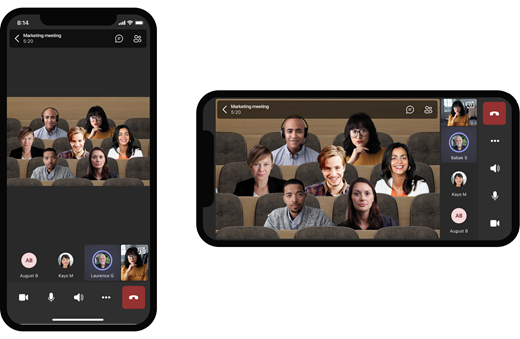
If you're a meeting organizer or presenter, you have an assortment of scenes to choose from. To change the scene, tap on the scene name in the bottom left corner of your screen.
Under Choose a scene, pick the one you want and select Apply. The scene will change for everyone who's in Together mode.
Note: The classroom scene automatically seats the meeting organizer (or whichever presenter was first to join) apart from the other participants.
Pin someone's video
To pin someone's video to your view regardless of who's talking, press and hold the video you want, then tap Pin.
Spotlight a video
When a video is spotlighted, it's essentially pinned for everyone in the meeting. For now, you're not able to start or stop spotlighting on the mobile app, but when someone using the desktop app spotlights a video, that video will be spotlighted for you just like it is for people on the desktop app.
You'll also get a notification that the video is spotlighted.
For more info, see Spotlight someone's video in a Teams meeting.
Still need help with Teams? Click here to search for guides and answers to your questions.