To add or install an office printer follow the instructions below while in the office or connected to FortiClient working remotely.
-
Click Start
 .
. -
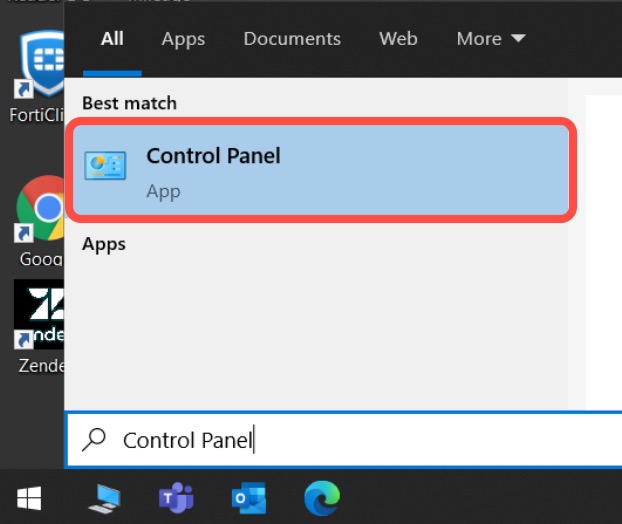
Type "Control Panel" and open it.
-
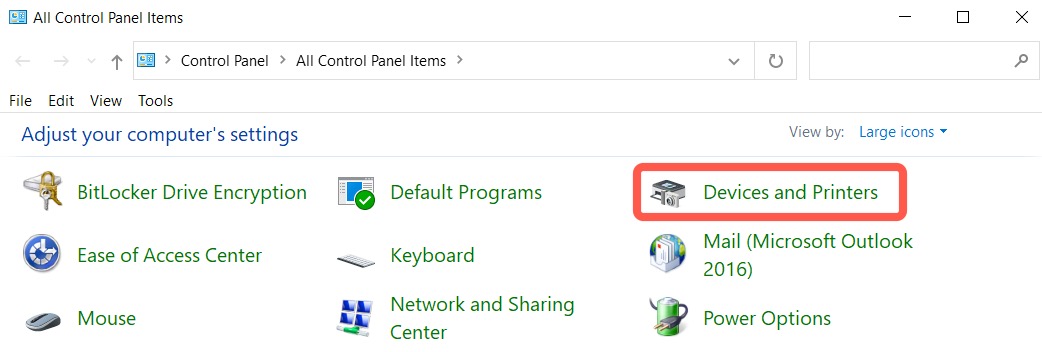
Click on the Devices and Printers.
-
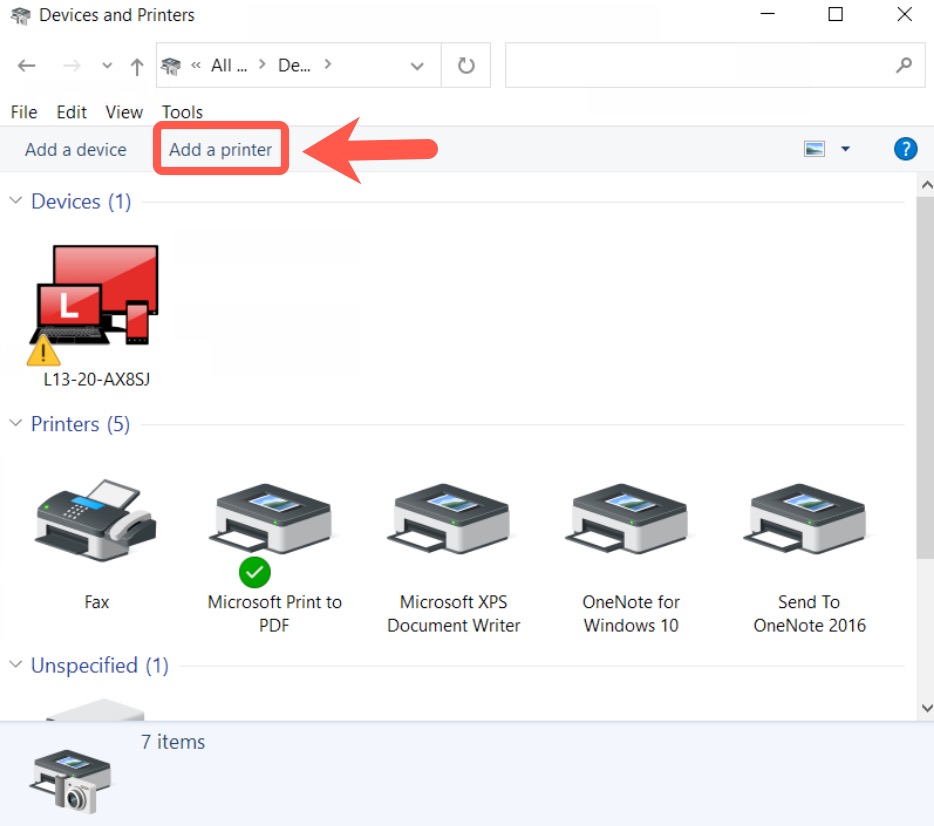
Click Add a printer.
-
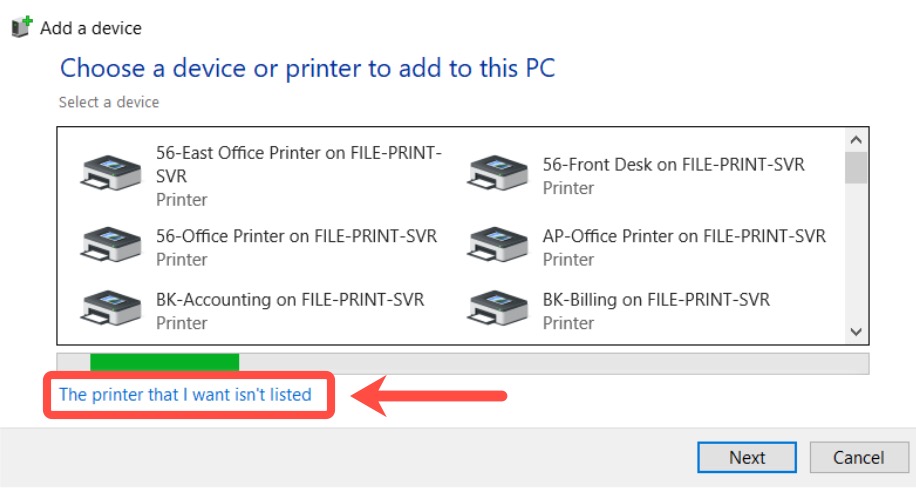
Click "The printer that I want isn't listed".
-
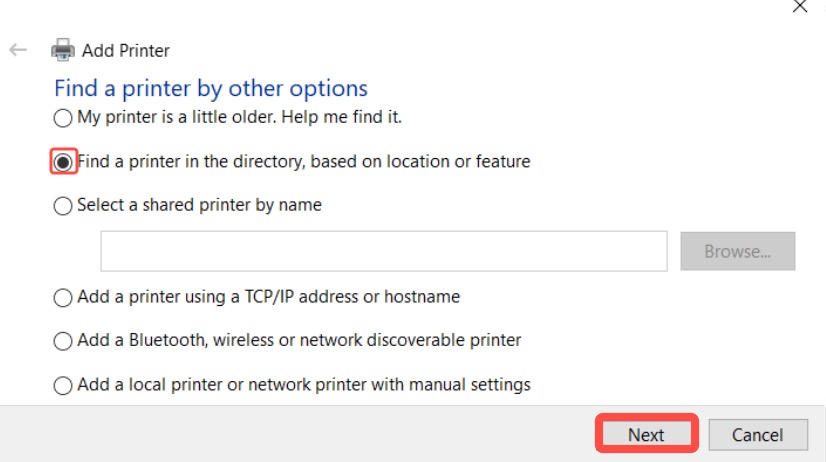
Select "Find a printer in the director" then Next.
-
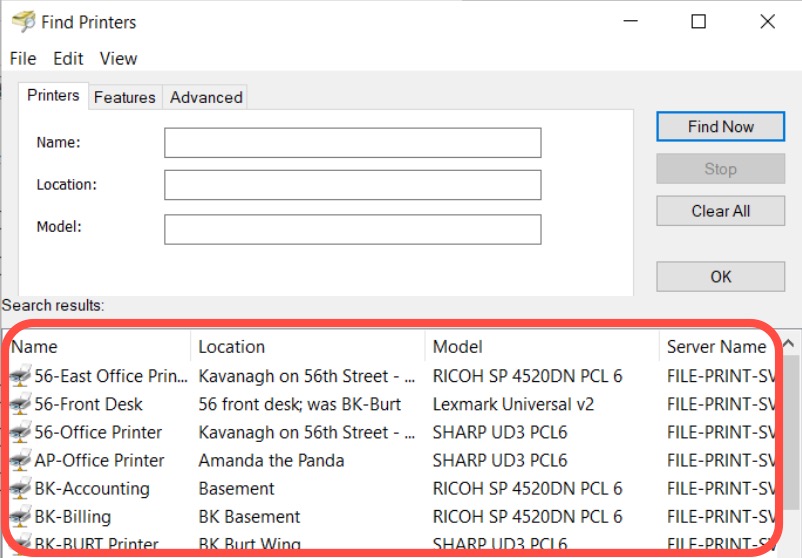
Double click on the printer you want added then Next.
-
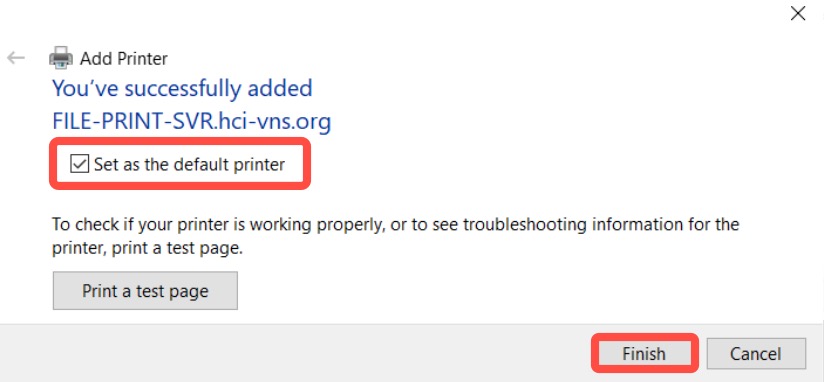
Check the box if you want to set it as your default printer then Finish.
- Due to recent Windows security update you may be prompted to Install a Driver, if you receive prompt please submit a Zendesk request for IT to finish this process.