To access EveryStep's Physician IDG Application on a personal computer you must be logged into Citrix using the steps below.
If you have an EveryStep assigned laptop Connect to FortiClient / Remote Access then proceed to step 5.
- Visit https://citrix.hci-vns.org/ in Edge
 or Chrome
- Login with your EveryStep email address and password.
- Set up MFA if you have not already done so
- The first time you login you will be prompted to download and install “Citrix Receiver" or "Citrix Workspace”. Follow the onscreen install prompts. Once installed you can proceed to step 4.
- Click on “My Windows Desktop New” to launch the desktop connection.
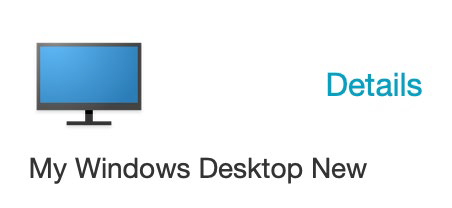
- Once connected open Edge or Chrome . Visit: https://idt.hci-vns.org
- Sign in with your EveryStep email address and password.
- When you're finished with the Portal Sign out of Citrix.