There are two ways to share your screen when on a Teams Meeting
- Wirelessly:
- Join the meeting on your laptop and click Share
 , then the item you want to share. Go to Share your screen in a Teams meeting to learn more.
- Join the meeting on your laptop and click Share
- HDMI:
- Connect your EveryStep laptop to the HDMI cable connected to the room console. Depending on your room settings, your screen may be shared automatically or you may have to select Share on the room console.
- Connect your EveryStep laptop to the HDMI cable connected to the room console. Depending on your room settings, your screen may be shared automatically or you may have to select Share
Share your screen with in-room participants
To share your screen with in-room meeting participants, just connect your EveryStep laptop to the HDMI cable connected to the room console. Depending on the room settings, your screen may be shared automatically, or you may have to select Present  on the room console.
Share in-room content
Content cameras allow you to stream a traditional whiteboard into meetings so remote participants can clearly see what's being drawn. While you write, we’ll square up the board, enhance the ink, and make anyone in front of the whiteboard transparent.
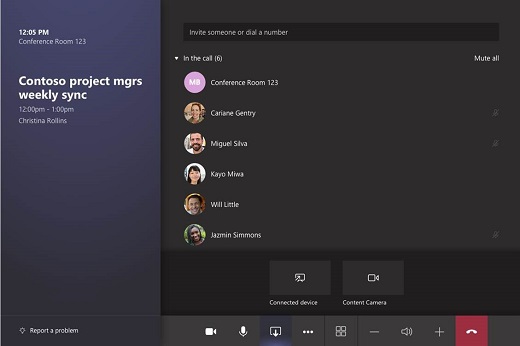
If the room you’re in has a content camera, you can share to it by selecting Share > Content camera on the room console.
Stop sharing your desktop
Select Stop presenting on the console.
Change Teams View
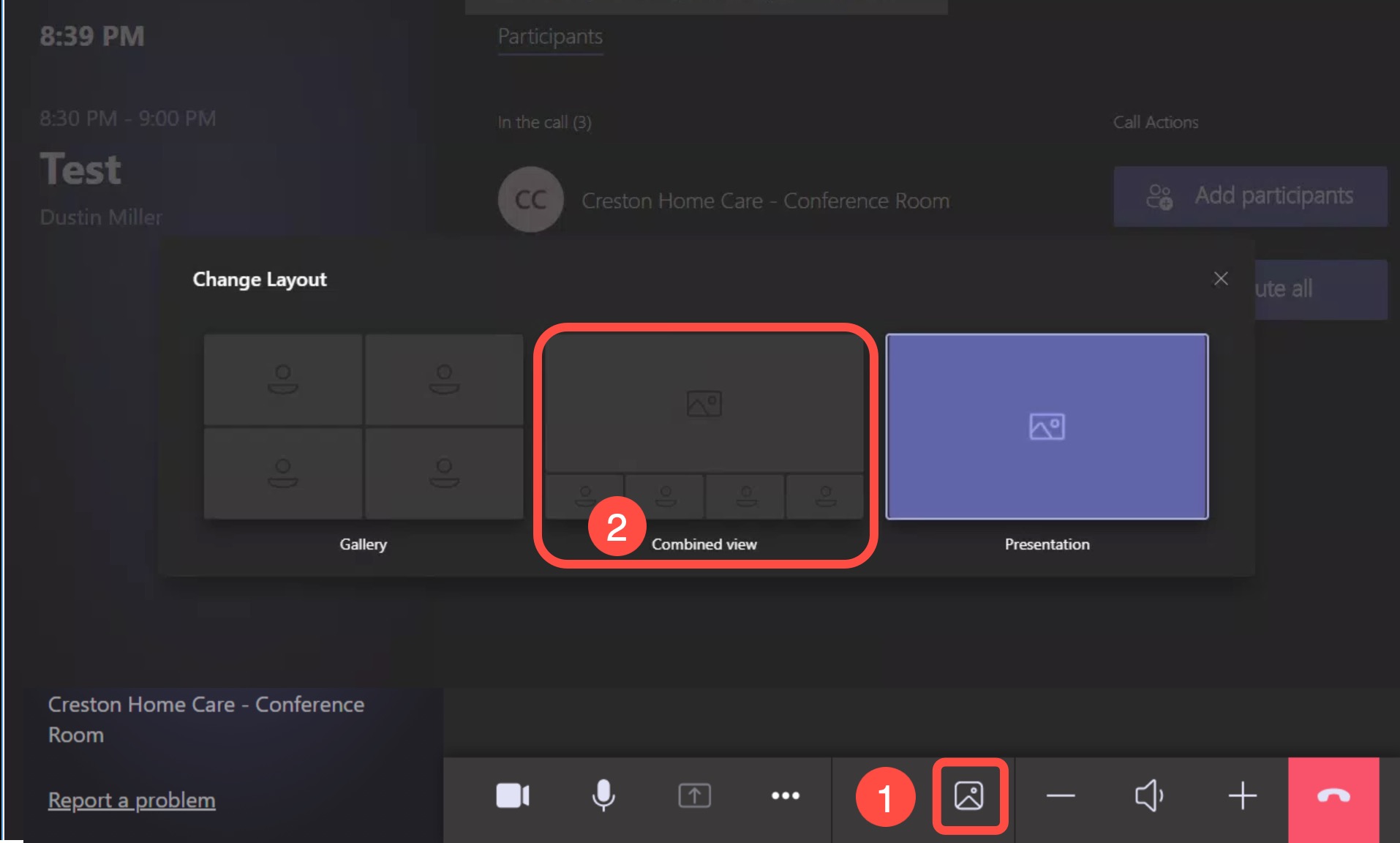
To view both a presentation and participants at the same time. Tap the scenery icon located at the bottom of the Logitech tap display, then tap Combined view.